Manage labels
Labels in Planix are app-wide, not per-project. Every label lives in the same catalogue, available across every project. The intent: cross-project categorisation — bug, feature, security, tech-debt, blocked-by-vendor — uses the same vocabulary everywhere so dashboards and reports compose cleanly.
Goal
By the end the instance will have a label catalogue tailored to how the team categorises work, with consistent colours so the kanban cards read at a glance.
Prerequisites
- Admin on the Nextcloud instance.
- The Planix app installed and enabled with the Planix register initialised (see Manage Planix settings).
- A view on the team's category vocabulary — what kinds of work do you actually want to tag?
Steps
-
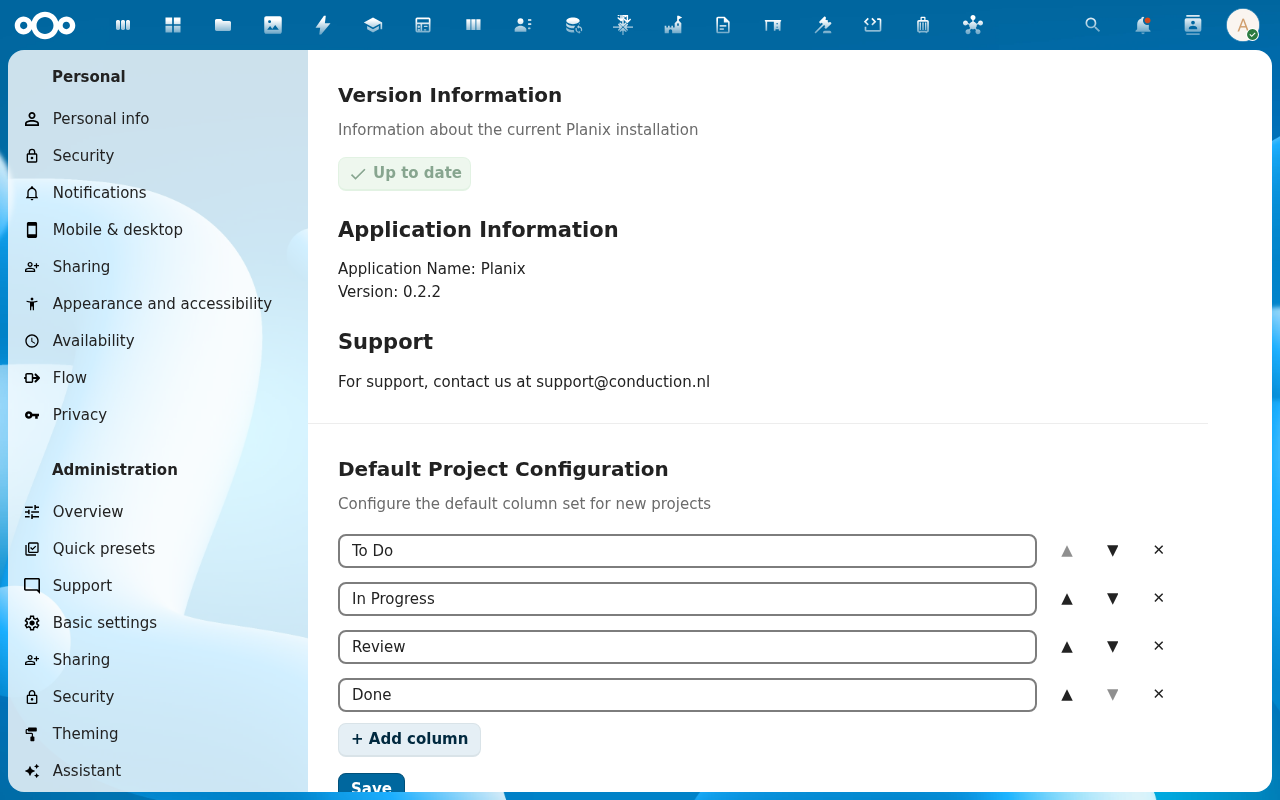
Open Settings → Administration → Planix and scroll to the Label Management section.
-
Review the current labels. Each row shows title, colour swatch, and an edit / delete action. On a fresh install the catalogue is empty; on an upgraded install you'll see whatever labels someone has been adding ad hoc.
-
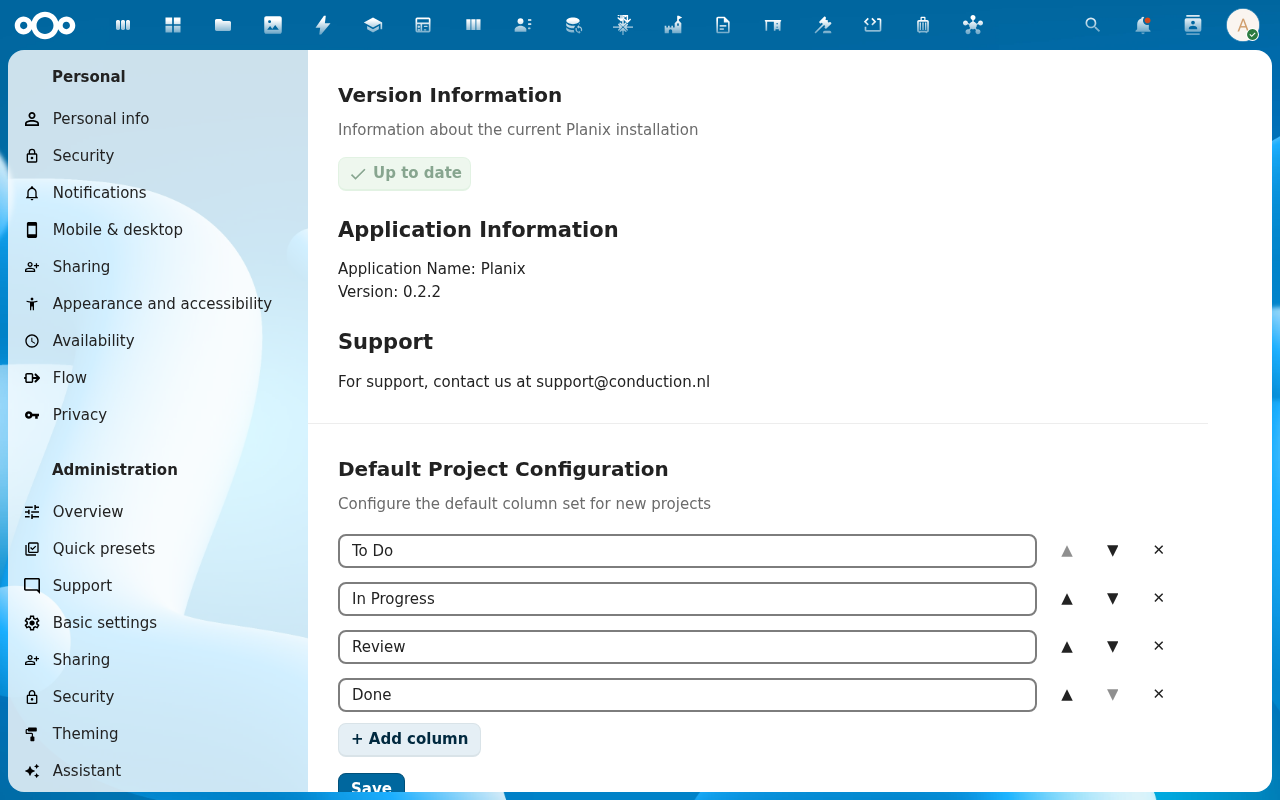
Add labels for the team's categories. Click Add label, type a title (e.g. bug), pick a hex colour (use the same colour family as the other labels in its category — red shades for blockers, green for completed-flavour, blue for normal flow). Save. Repeat for each category.
-
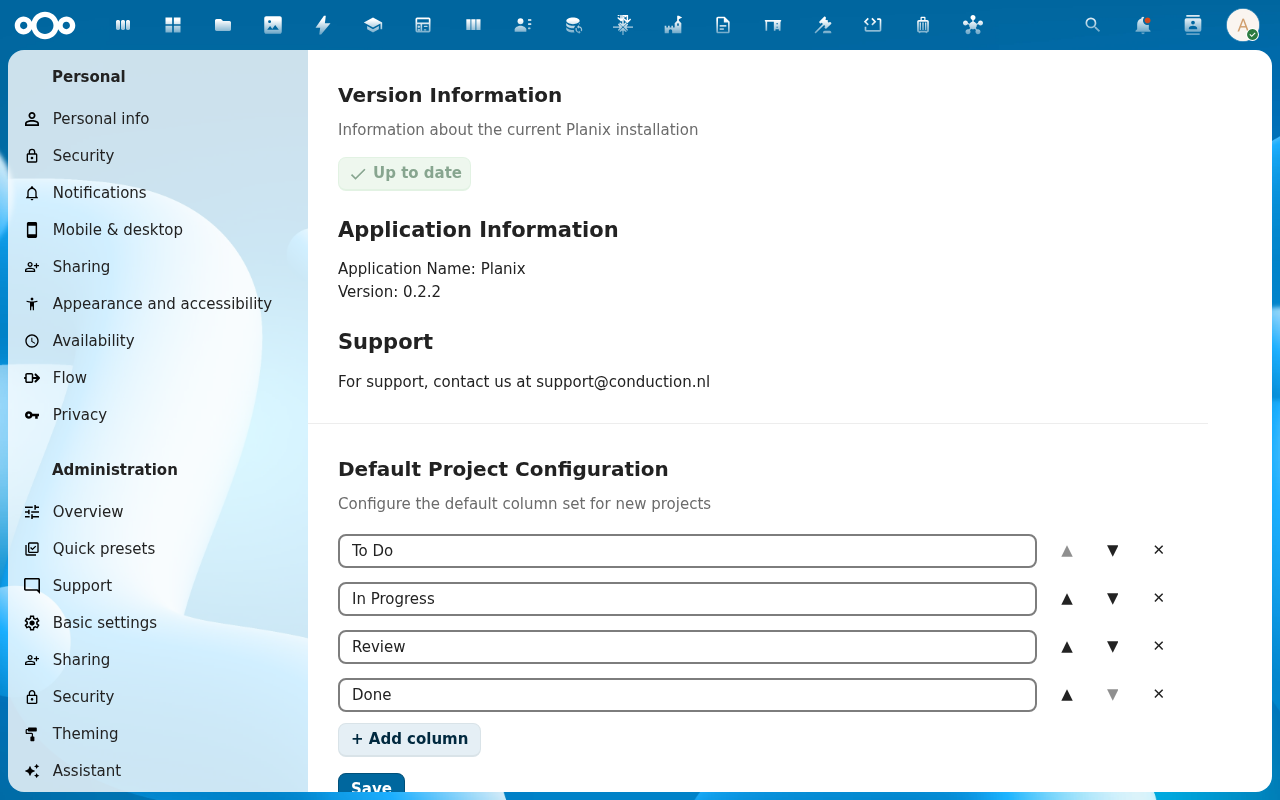
Edit an existing label. Click the edit action on a row, change the title or the colour, save. The change propagates to every task already tagged with it — the colour update is visible the next time those task cards render.
-
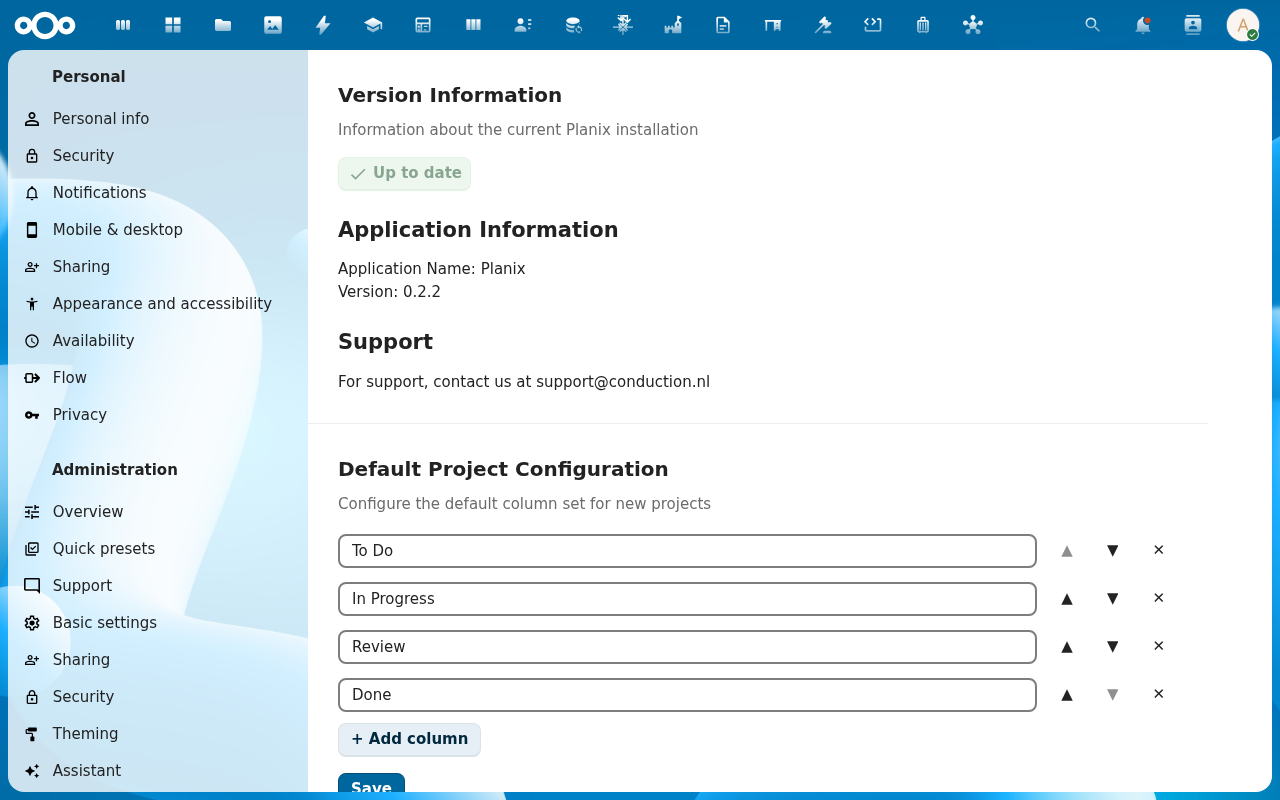
Delete a label. The delete action prompts a confirmation showing how many tasks currently carry the label. Deleting removes the label from every task; the tasks themselves stay. Use this to retire categories that no longer apply.
Verification
The Label Management section lists the labels you added. Creating a task (see Add and manage tasks) shows your labels in the label picker. Editing a label's colour updates every card already tagged with it. Deleting a label removes it from every task that carried it.
Common issues
| Symptom | Fix |
|---|---|
| Label picker on a task is still empty after adding labels here | Browser cache; reload the Planix app. Labels are read on app load through the labels store. |
| Colour picker doesn't apply | Brand-token CSS isn't loaded — graceful-restart Apache or hard-reload. |
Delete shows 0 tasks affected but the label is still on cards | Wait a tick — the task count is computed server-side; the next render reflects the actual state. |
| Want per-project labels | Not supported — labels are intentionally app-wide so dashboards across projects compose. Use a label prefix (proj-A-frontend, proj-B-frontend) if you need project-scoping. |
| Duplicate labels (same title, different colours) | Allowed but discouraged; users see a duplicate in the picker. Delete the one with fewer tasks; the other survives. |
| Screenshots may be missing | App not yet installed in the test environment; rerun npm run test:e2e:docs once it is. |
Reference
- Add and manage tasks — where users pick from this catalogue.
- Work with the kanban board — label-based board filtering.
- Configure default project columns — the parallel admin task.
- Admin settings reference — the full admin surface.