Configure default project columns
Every new Planix project is seeded with a default column set on creation. Out of the box that's To Do, In Progress, Review, Done — four columns, no WIP limits. If your team uses a different flow (you have a Blocked lane, or a Ready to deploy lane, or you want WIP limits on the active columns), set the default here once and every new project picks it up.
Goal
By the end the instance will have a default-column set tailored to your team's flow, and a freshly-created test project will use that set.
Prerequisites
- Admin on the Nextcloud instance.
- The Planix app installed and enabled with the Planix register initialised (see Manage Planix settings).
- A view on what the team's actual lane structure looks like — read the columns off your current real project board if you have one, or talk it through with the team.
Steps
-
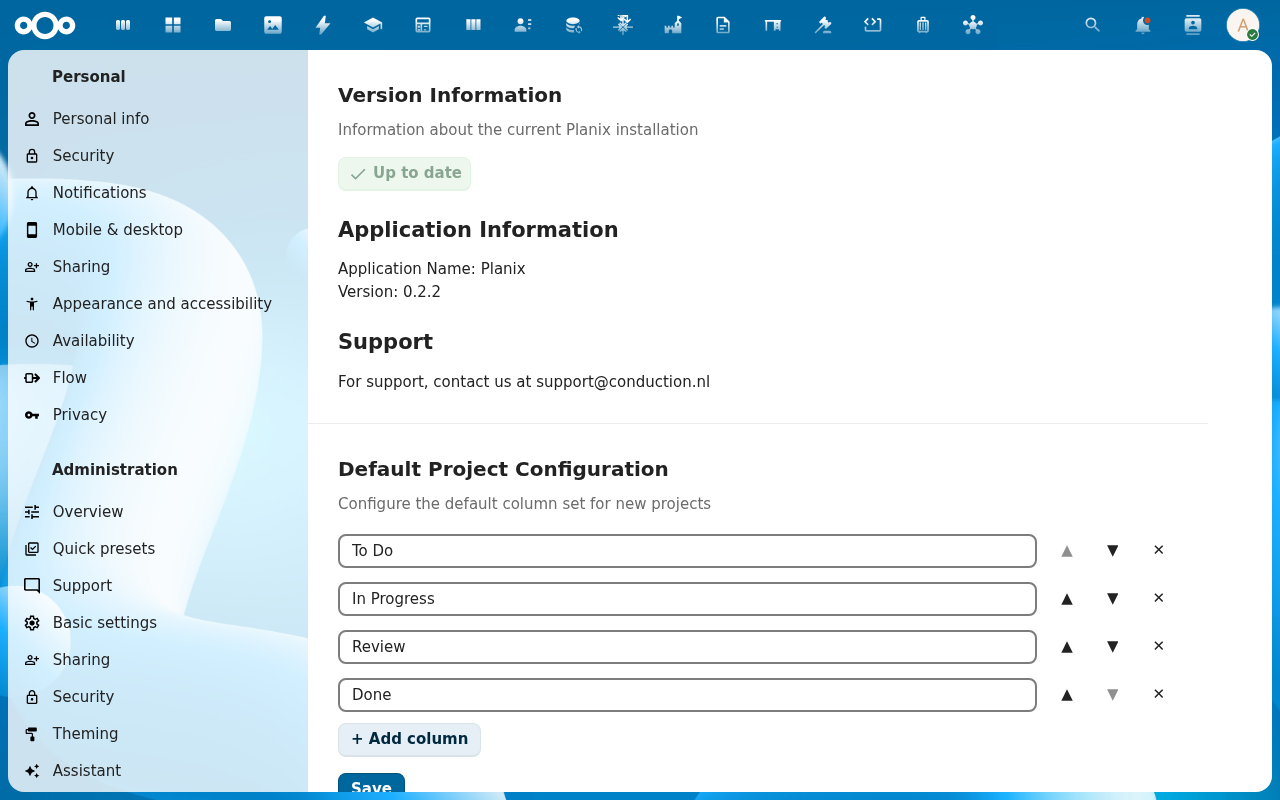
Open Settings → Administration → Planix and scroll to the Default Project Configuration section.
-
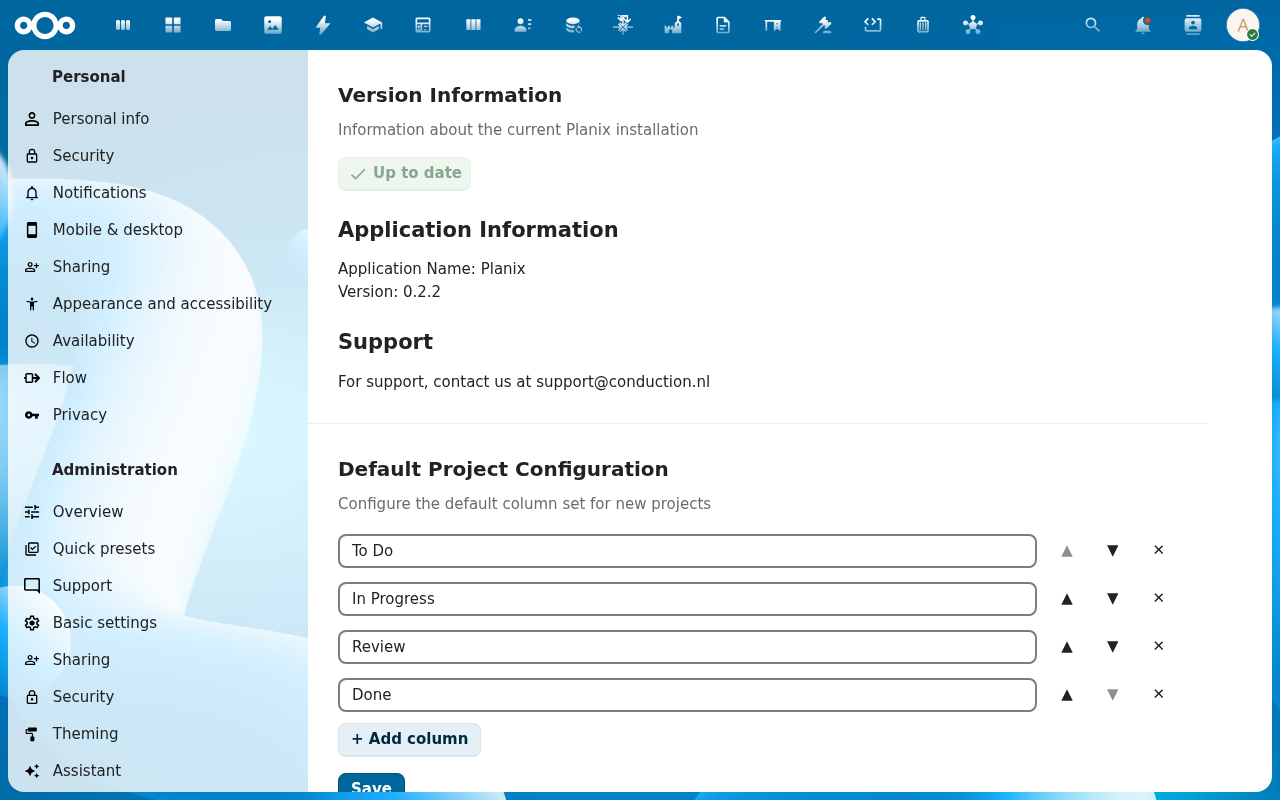
Review the current default columns. Each row shows order, title, colour, and WIP limit (empty if unset). The default Planix install ships To Do, In Progress, Review, Done.
-
Edit the columns. Add column appends a new row; the drag handle reorders; the trash removes a column; the WIP limit field accepts an integer or stays blank (no limit). Use distinct colours so the kanban board reads at a glance.
-
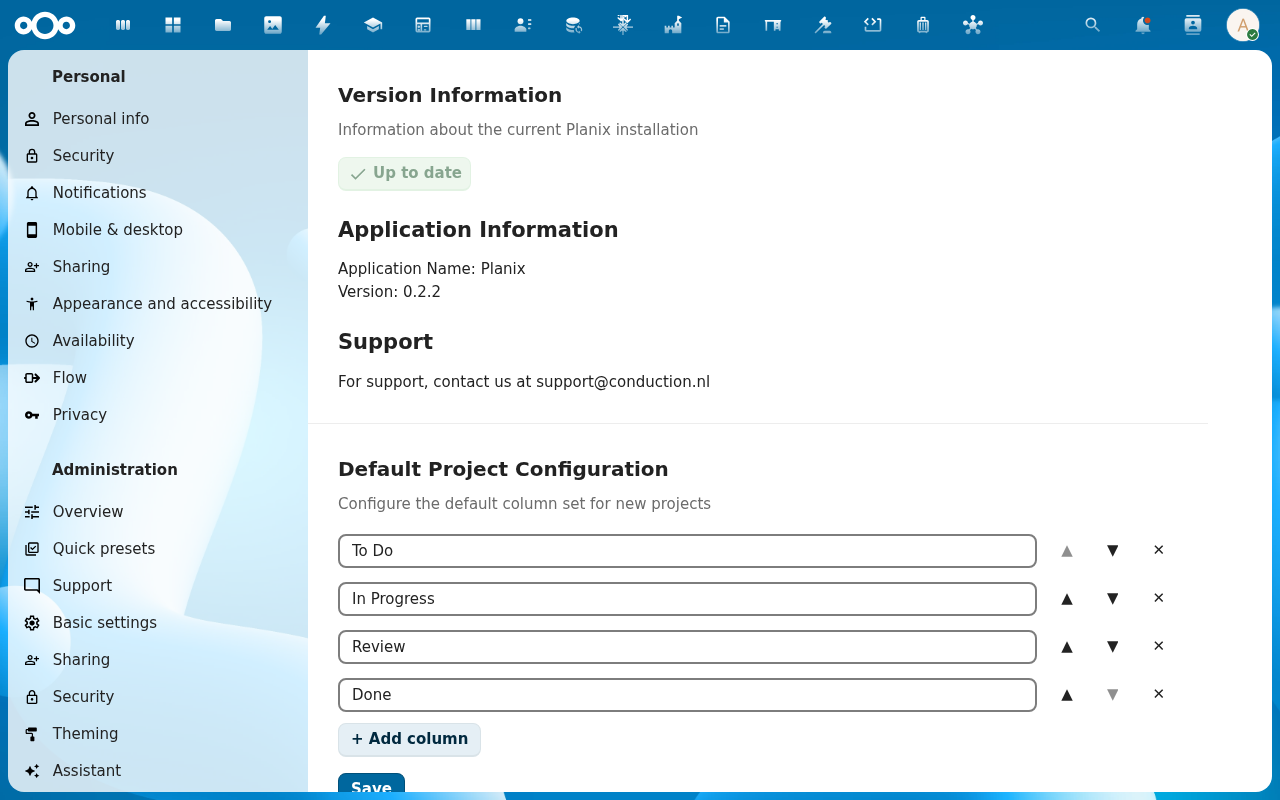
Save. The change applies to projects created after the save; existing projects keep the column set they were created with. To migrate an existing project, edit its columns by hand on the board.
-
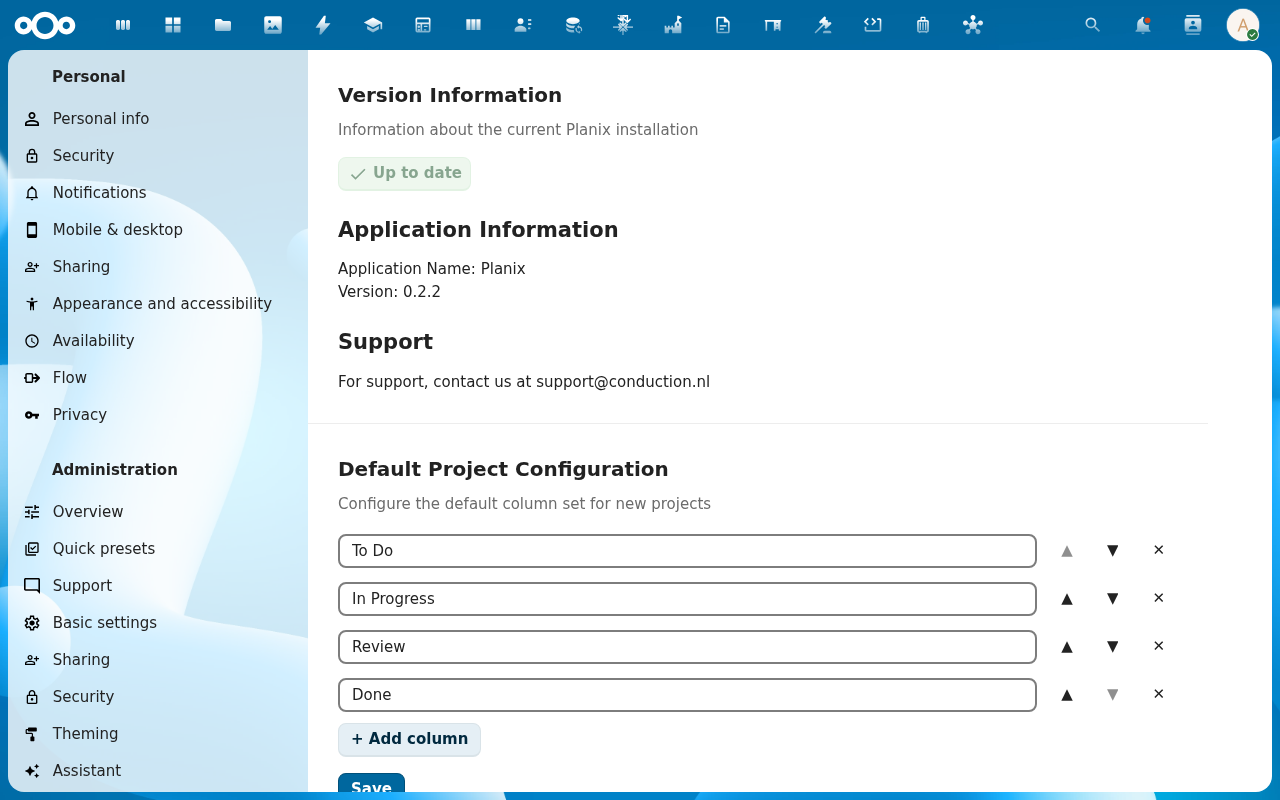
Verify. Create a test project (see Create your first project). Its board should open with exactly the column set you configured, in the right order, with the right colours and WIP limits.
Verification
The Default Project Configuration section shows the column set you saved. A new project created after the save uses that set verbatim; an old project still uses its original set. The WIP limits, if you set any, appear in the new project's column headers.
Common issues
| Symptom | Fix |
|---|---|
| Save action does nothing | The save endpoint returned a 4xx — check the Nextcloud log; usually the user-rights check (only admins can save). |
| New project still uses the old defaults | The save didn't land — reload Settings → Administration → Planix and check the column rows match what you intended. |
| Existing project doesn't pick up the new defaults | By design — default columns only apply on project creation. Edit existing projects' columns manually on the board. |
| Column count limit | No fixed cap, but kanban best practice is 4–7 columns; more than that and the board scrolls horizontally on a 1280px viewport. |
| Colour picker is empty | Brand-token CSS variables didn't load — graceful-restart Apache or hard-reload the settings page. |
| Screenshots may be missing | App not yet installed in the test environment; rerun npm run test:e2e:docs once it is. |
Reference
- Create your first project — what users see after these defaults take effect.
- Work with the kanban board — where the columns live.
- Manage labels — the other big admin task.
- Kanban board reference — column model.
- Admin settings reference — the full admin surface.