Your dashboard and My Work
The Dashboard is your at-a-glance landing page; My Work is the prioritised list of every task assigned to you across every project. Together they give you the "what should I be doing today" answer without having to open each project's board separately.
Goal
By the end you will have read your dashboard, drilled from a KPI card into the matching My Work filter, walked the three groups (Overdue, Due this week, Everything else), updated a task's status inline, and configured the dashboard's notification preferences in user settings.
Prerequisites
- Planix open and the OpenRegister back end connected (see Open Planix for the first time).
- At least one task assigned to you in any project — the dashboard / My Work are personal aggregations, so they're empty without assigned work.
Steps
-
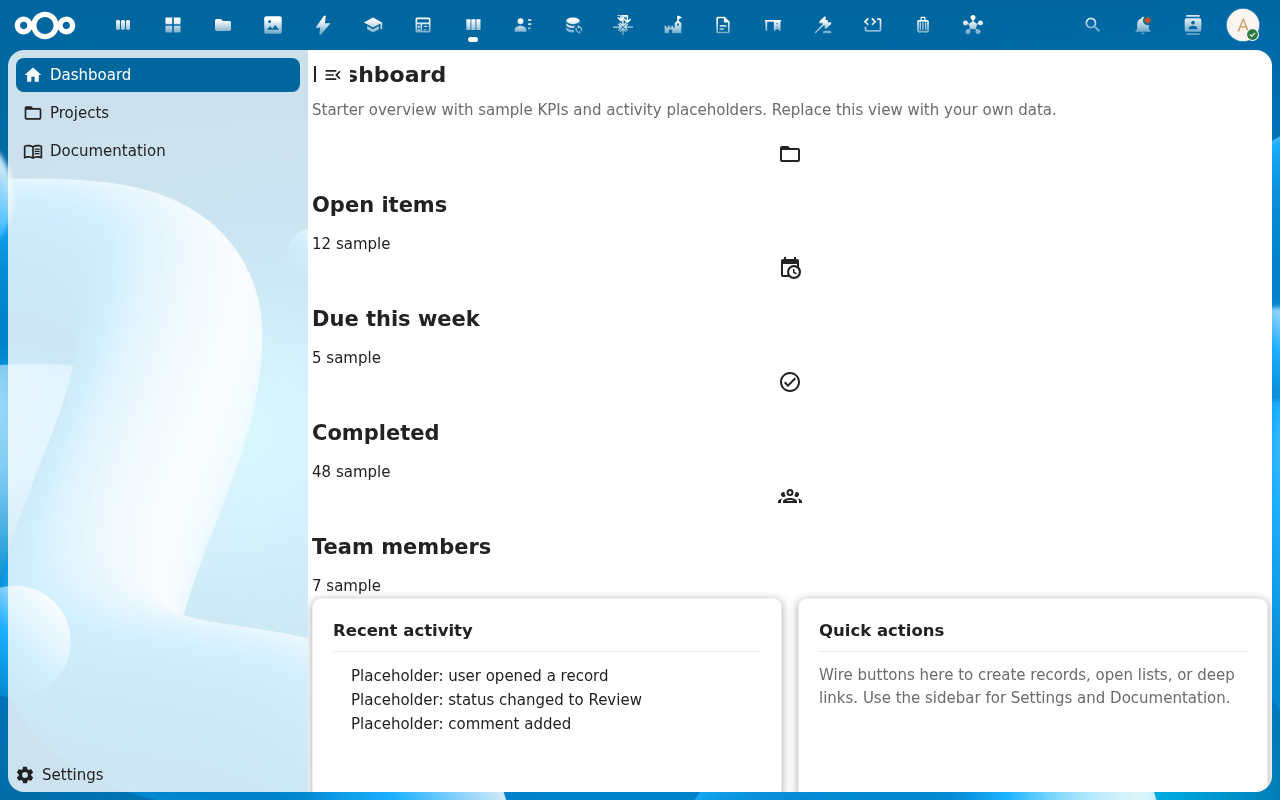
Open the Planix Dashboard (it's the landing page; click the Planix app in the menu, or Dashboard in the navigation). Read the four KPI cards — Open (open or in_progress), Overdue, In Progress, Completed today. Below: Recent projects (the five most active you're in) and Due this week (tasks assigned to you due in the next seven days).
-
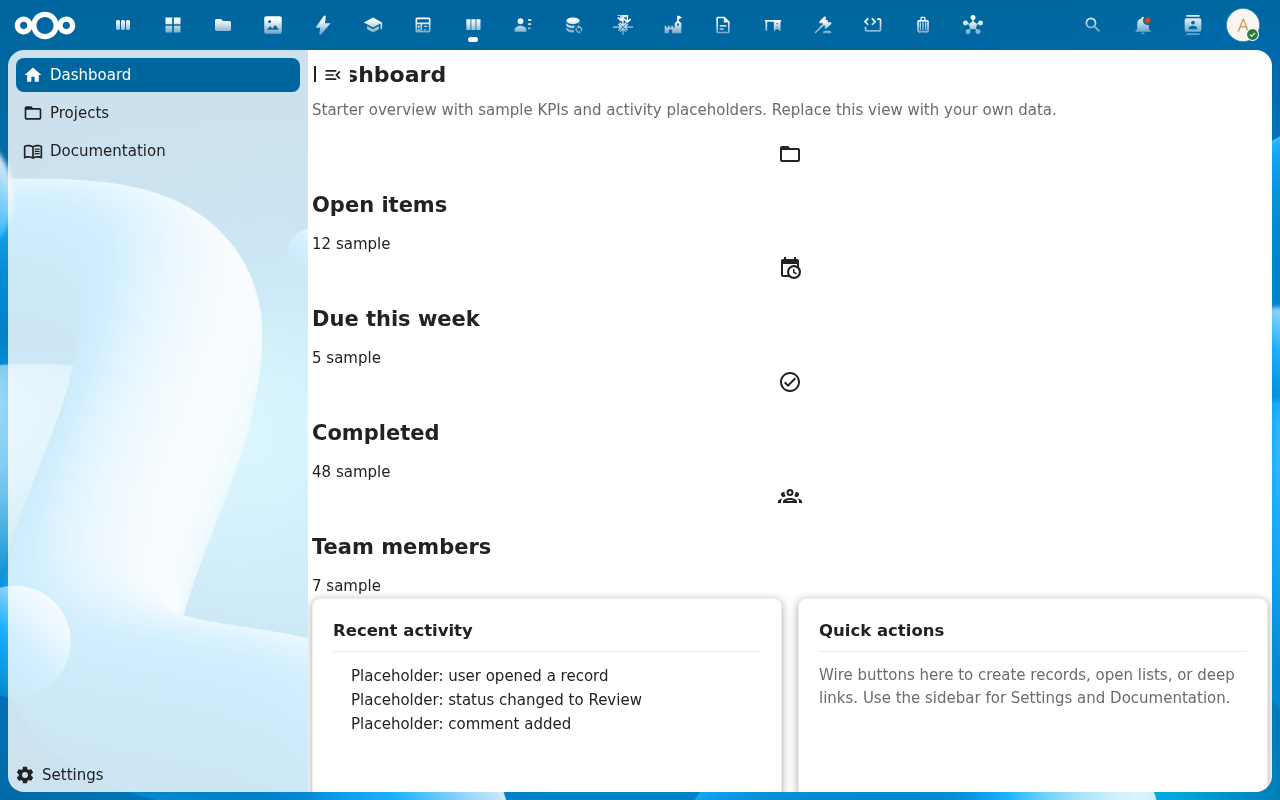
Click the Overdue KPI card. You land on My Work with the Overdue group expanded and the other two collapsed. Overdue is due date in the past, status ≠ done; tasks here get the red highlight on the card.
-
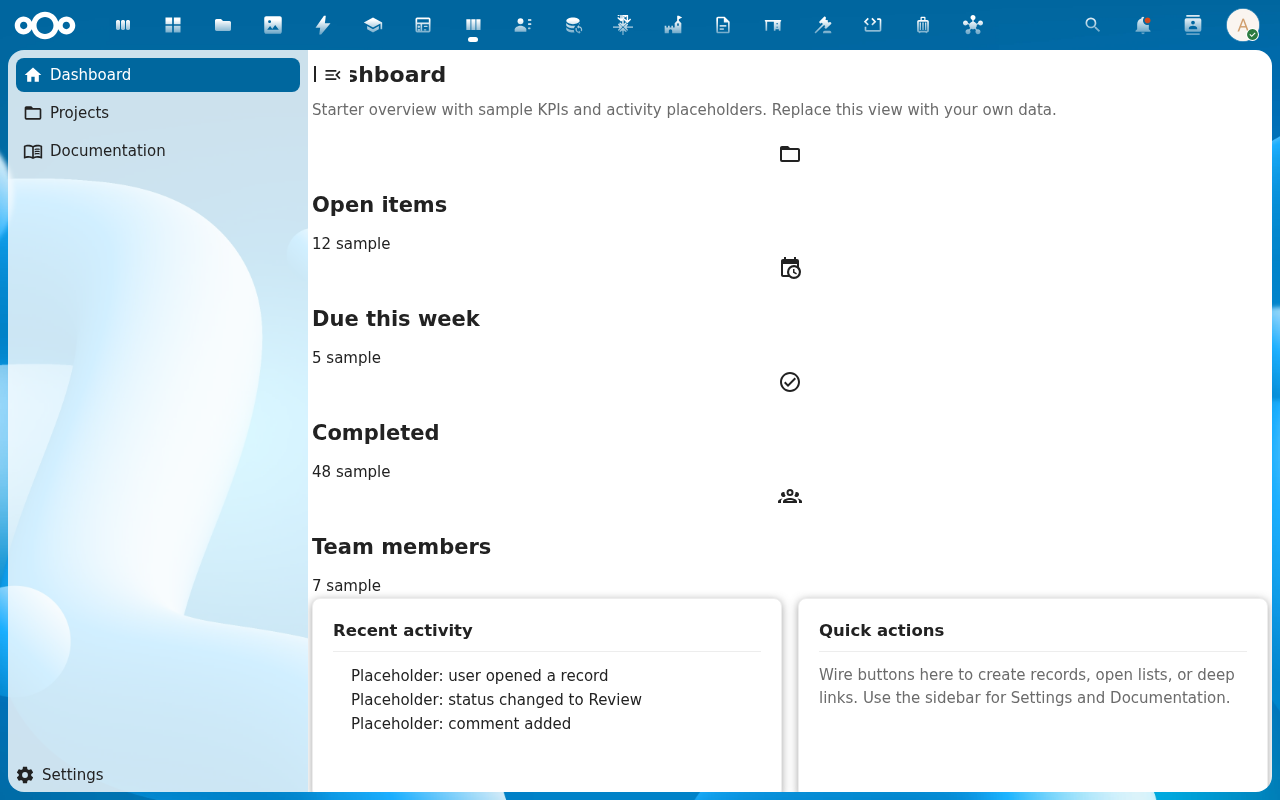
Walk My Work's three groups:
- Overdue — past due date, not done (red highlight)
- Due this week — due in the next seven days, not done
- Everything else — open tasks with no due date, or a due date more than seven days away
Within each group tasks sort by priority (urgent → high → normal → low), then by due date.
-
Update a task's status inline. Each row has a status dropdown — pick In progress or Done without leaving My Work. The row reflows: a task marked Done drops off My Work (it's the inverse of open + in_progress); a task marked Blocked stays visible but tagged.
-
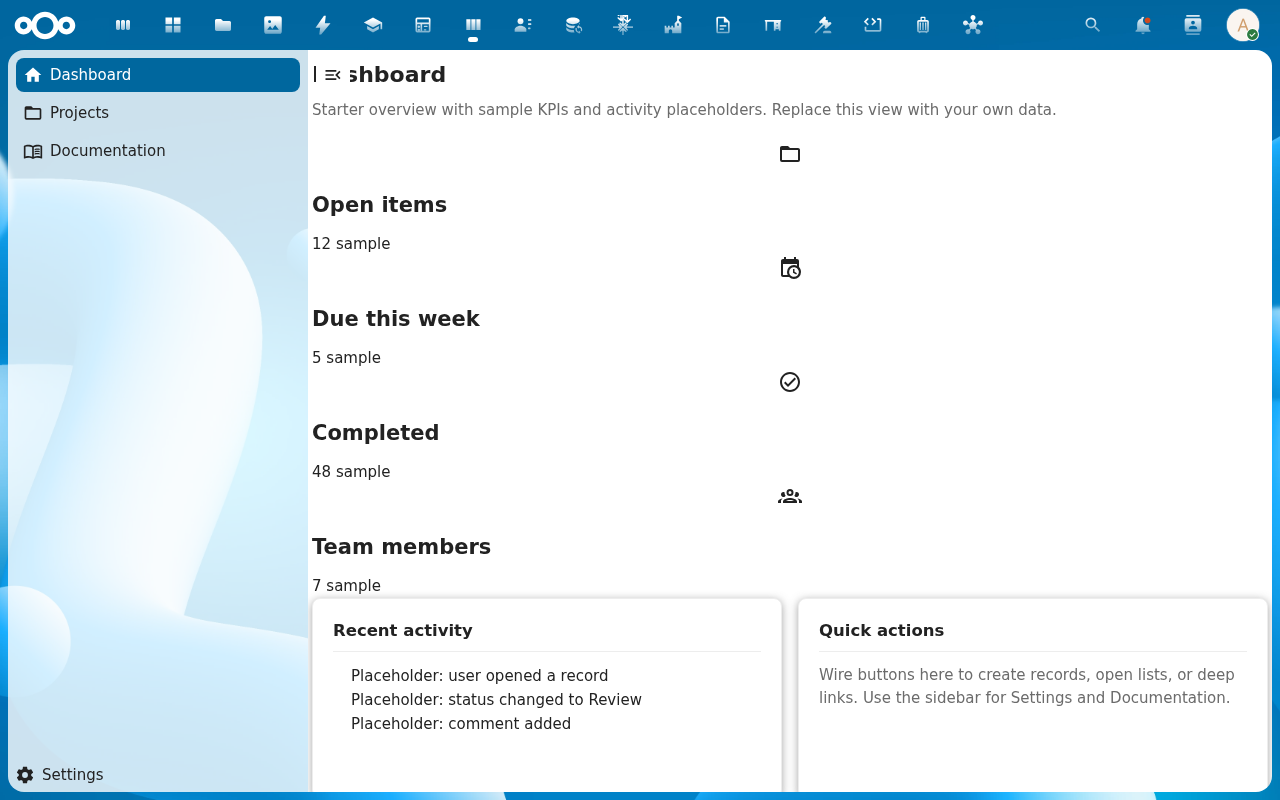
Open the user settings dialog (gear icon in the Planix navigation). Set notification preferences:
- Notify when a task is assigned to me — Nextcloud notification on assignment (default on)
- Remind me 1 day before a task's due date — due-date reminder (default on)
- Default view when opening a project — My Work / Kanban / Backlog (default My Work)
These settings persist per user via Nextcloud's
IConfig.
Verification
The dashboard KPI counts match what you see on My Work after drilling in. My Work's three groups partition your open tasks correctly (every task is in exactly one group). Inline status changes are reflected on each task's audit trail. User-settings changes persist across browser sessions.
Common issues
| Symptom | Fix |
|---|---|
KPI cards all show 0 even though you have tasks | The tasks aren't assigned to you — check the Assignee field on a couple of tasks; My Work / KPIs are personal. |
| Overdue task isn't red on its card | The card is on a project board; the red border applies there too. Reload the board if the task moved to overdue while the page was open. |
| Notifications don't arrive | Nextcloud notification settings have the Planix channel disabled — check Settings → Personal → Notifications, find the Planix rows, enable them. |
| Default view setting ignored | The setting is read on each project navigation; if you switched mid-session, refresh the project page. |
| Today's Due this week is empty but you have due-today tasks | Their status is done or cancelled — done tasks don't surface on My Work even on the due date. |
| Screenshots may be missing | App not yet installed in the test environment; rerun npm run test:e2e:docs once it is. |
Reference
- Add and manage tasks — assigning yourself and setting due dates is what populates My Work.
- Log time on a task — time entries against the tasks My Work surfaces.
- Link a task to a Procest case — gov-process tasks flowing into your queue.
- Dashboard & My Work reference — the underlying feature spec.
- Admin & user settings reference — what each preference does on the server side.