Manage Planix settings
Planix's admin settings page in the Nextcloud administration panel does three jobs: it reports the installed version with an Update available indicator, it shows whether the OpenRegister-backed register and schemas are initialised (and offers an Initialize register action when not), and it carries the per-instance feature toggles (default columns, labels, Procest bridge). This tutorial covers the version + register-initialisation parts; the column and label management each have their own page.
Goal
By the end you will have confirmed the Planix version, run (or re-run) the register initialisation so all schemas land in OpenRegister, and reviewed the feature toggles so the rest of the admin surface (default columns, labels) and the Procest bridge are set as you want them.
Prerequisites
- Admin on the Nextcloud instance.
- The OpenRegister app installed and enabled, with at least one register available — Planix's initialiser creates its own register if one isn't there yet.
Steps
-
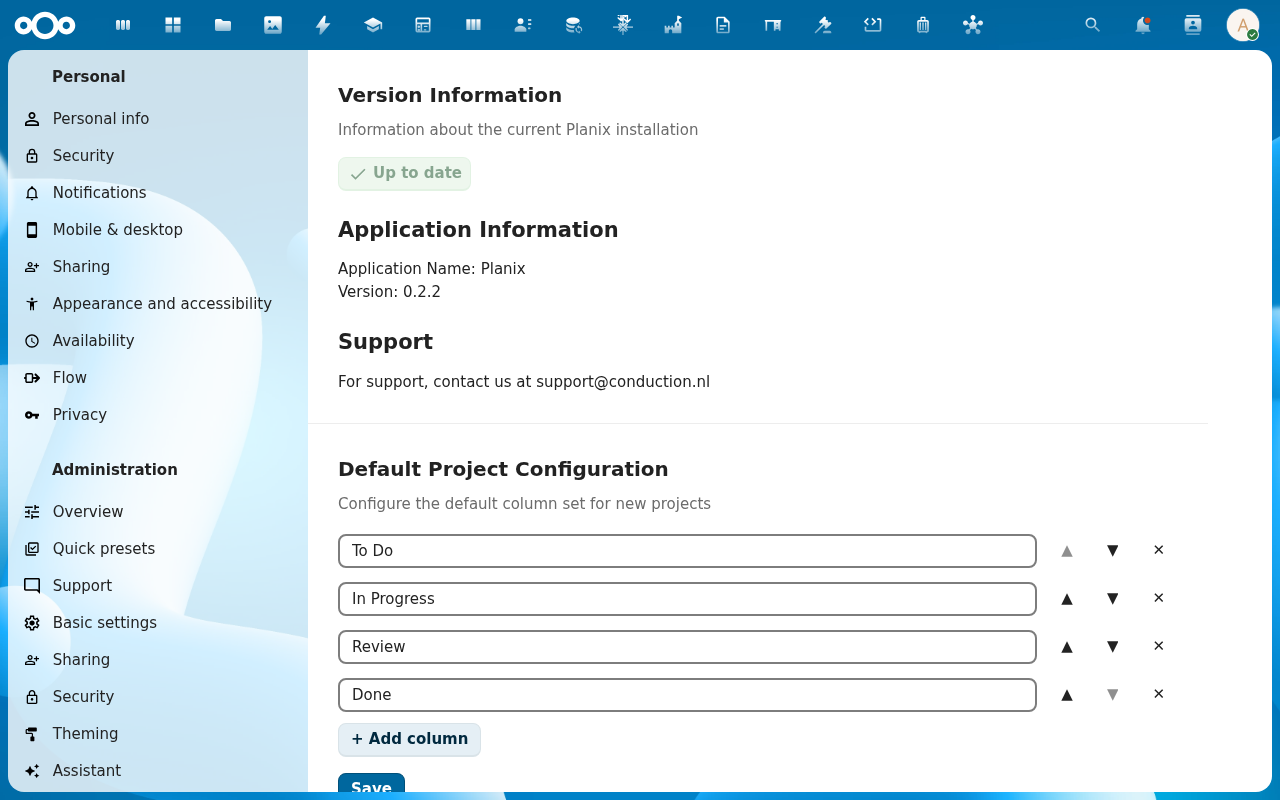
Open Settings → Administration → Planix. The page opens with the App version info card at the top.
-
Confirm the Version. The
CnVersionInfoCardshows the installed Planix version and the connection status to OpenRegister. If a newer version is available on the Nextcloud App Store, an Update available indicator with a link is rendered. Use this to confirm Nextcloud loaded the version you expect after an install or upgrade.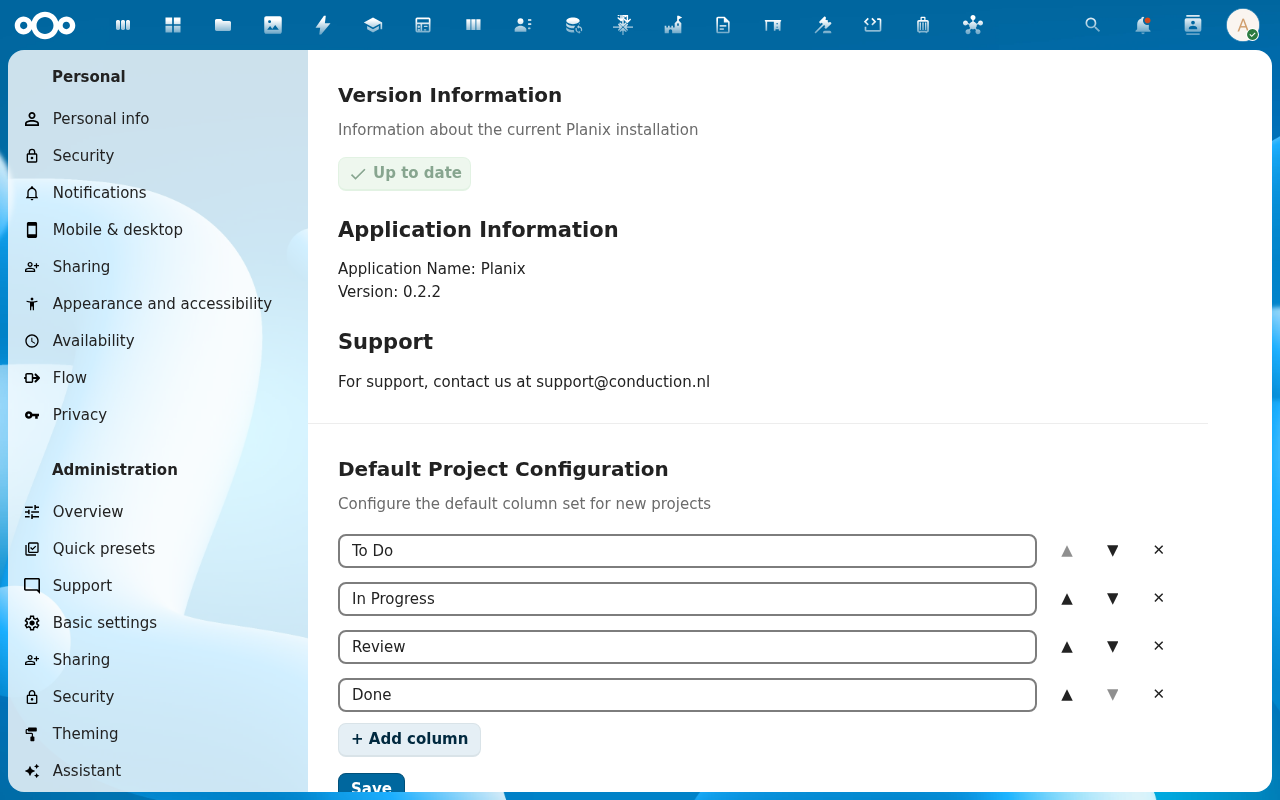
-
Scroll to the OpenRegister Setup card. It shows whether the Planix register and its eight schemas (project, column, task, task-comment, time-entry, label, member, settings) are initialised. On a fresh install the card displays Initialize register; click it to import the OpenAPI 3.0 register definition from
lib/Settings/planix_register.jsoninto OpenRegister.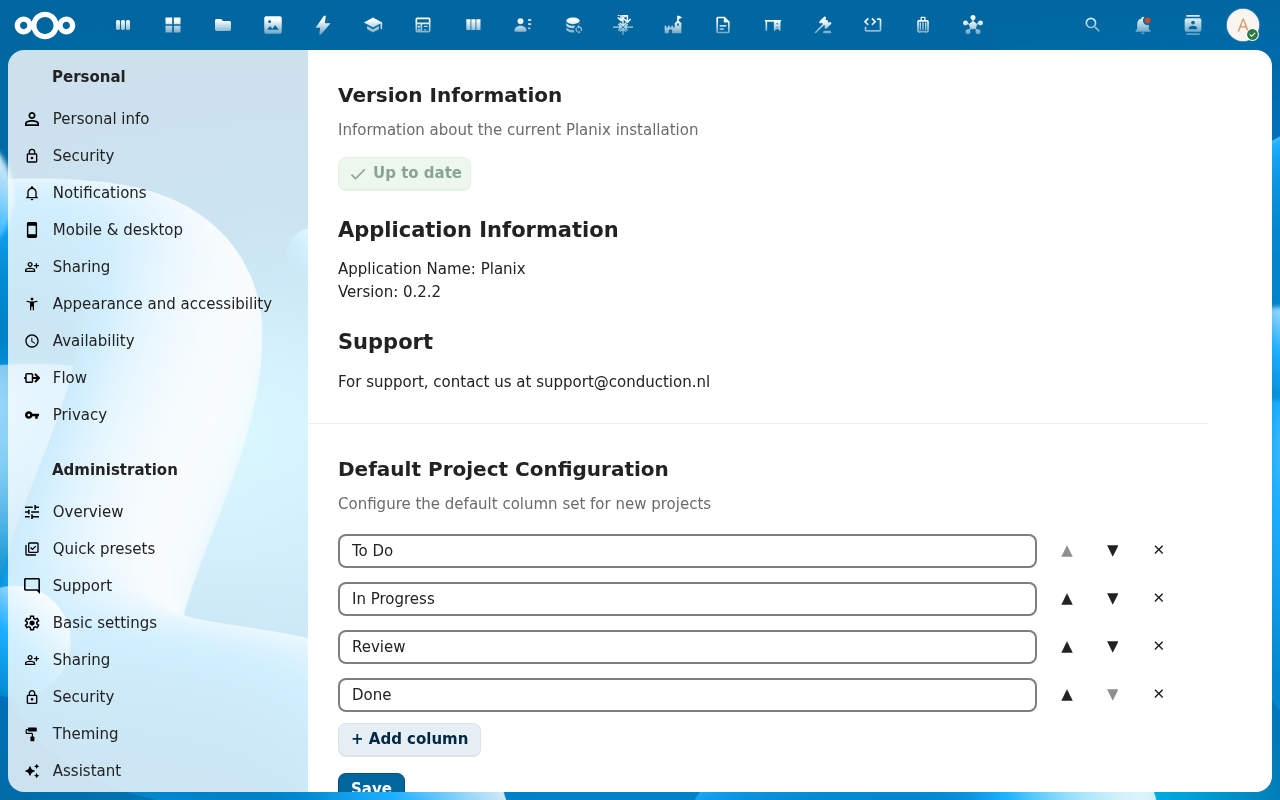
-
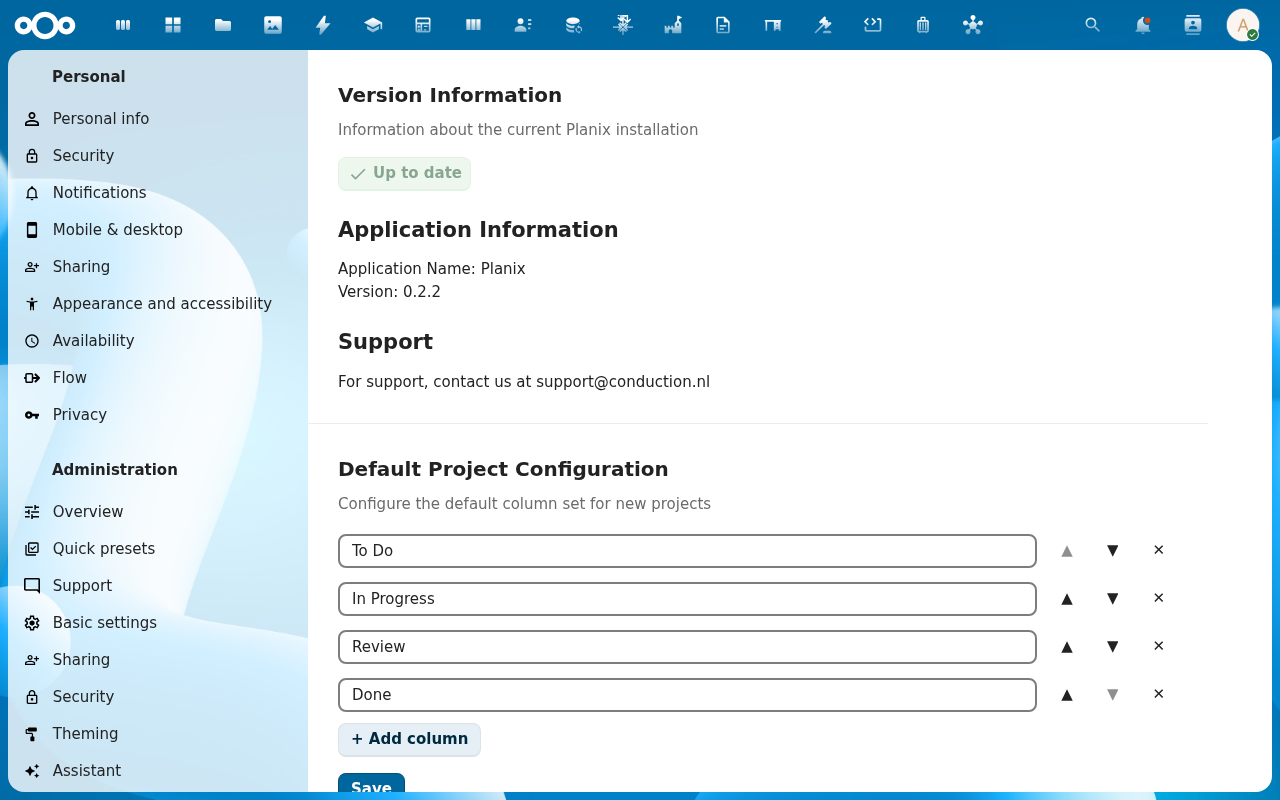
After the import succeeds, the card switches to Register initialised and lists each schema with a green tick. If the Initialize register action fails, the Nextcloud log will carry the underlying error — usually an OpenRegister version skew on the import API. Once both apps are on compatible versions, re-run.
-
Confirm the Procest bridge toggle (under the OpenRegister card) is set to your preference. Default is on: Planix tasks and projects accept Procest case UUIDs (
zaakUuid,caseReference) and render deep-links into the Procest app when set (see Link a task to a Procest case). Switching it off disables the deep-linking; the metadata fields still exist as read-only.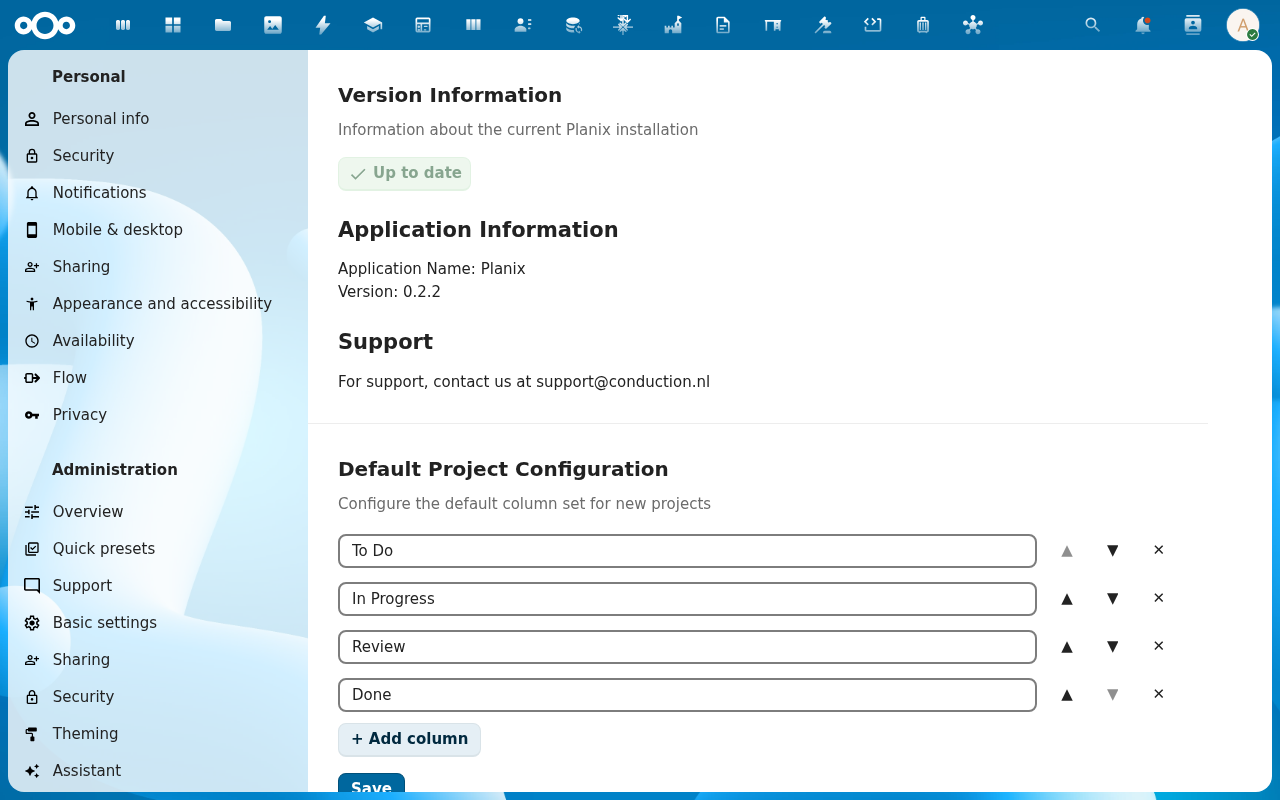
Verification
The App version info card shows the installed version and (if applicable) the available update. The OpenRegister Setup card shows Register initialised with all schemas listed. The Procest bridge toggle reflects your choice. Opening the Planix app loads without error banners, project lists render, and Create project opens a populated form.
Common issues
| Symptom | Fix |
|---|---|
| OpenRegister Setup card stuck on Initialize register even after clicking | The import is failing server-side — check the Nextcloud log for the Planix repair-step error. Stale OpenRegister / Planix version pair is the usual cause; align versions and re-run. |
| Schemas listed but Create project fails with a schema error | The schema definitions don't match what the Planix Vue code expects — usually an upgrade where the register definition moved on but the JS bundle is stale. Hard-reload Planix; if that doesn't help, re-run the initialise. |
| Procest bridge toggle missing | The toggle only renders when both Planix and Procest are detected — install Procest, reload settings, and the toggle appears. |
| Initialize register succeeds but lists fewer schemas than expected | OpenRegister rejected some schemas (usually a duplicate-name conflict with another app); check the OpenRegister side — the conflict is logged. |
| Version says "Up to date" but the dashboard layout is wrong | The webpack bundle is stale — graceful-restart Apache (or rebuild and reload). |
| Screenshots may be missing | App not yet installed in the test environment; rerun npm run test:e2e:docs once it is. |
Reference
- Open Planix for the first time — the user-facing check that the initialisation worked.
- Configure default project columns — first big admin task after initialisation.
- Manage labels — second one.
- Link a task to a Procest case — what the Procest bridge unlocks.
- Admin settings reference — the full admin surface and the underlying services.
- Register schemas reference — what the initialise creates in OpenRegister.