Work with the kanban board
The kanban board is Planix's primary view of a project's work. Tasks live as cards in columns; you drag cards between columns to update their status. Each column can carry a WIP limit (work-in-progress) — a soft cap that flags when a column is overloaded so the team can pull rather than push.
Goal
By the end you will have a populated kanban board, dragged a card between columns, set a WIP limit on at least one column, switched to the list view, and applied a filter.
Prerequisites
- A project in Planix with at least one task (see Add and manage tasks if you need to add some first).
- Member of the project — only members can see the board.
Steps
-
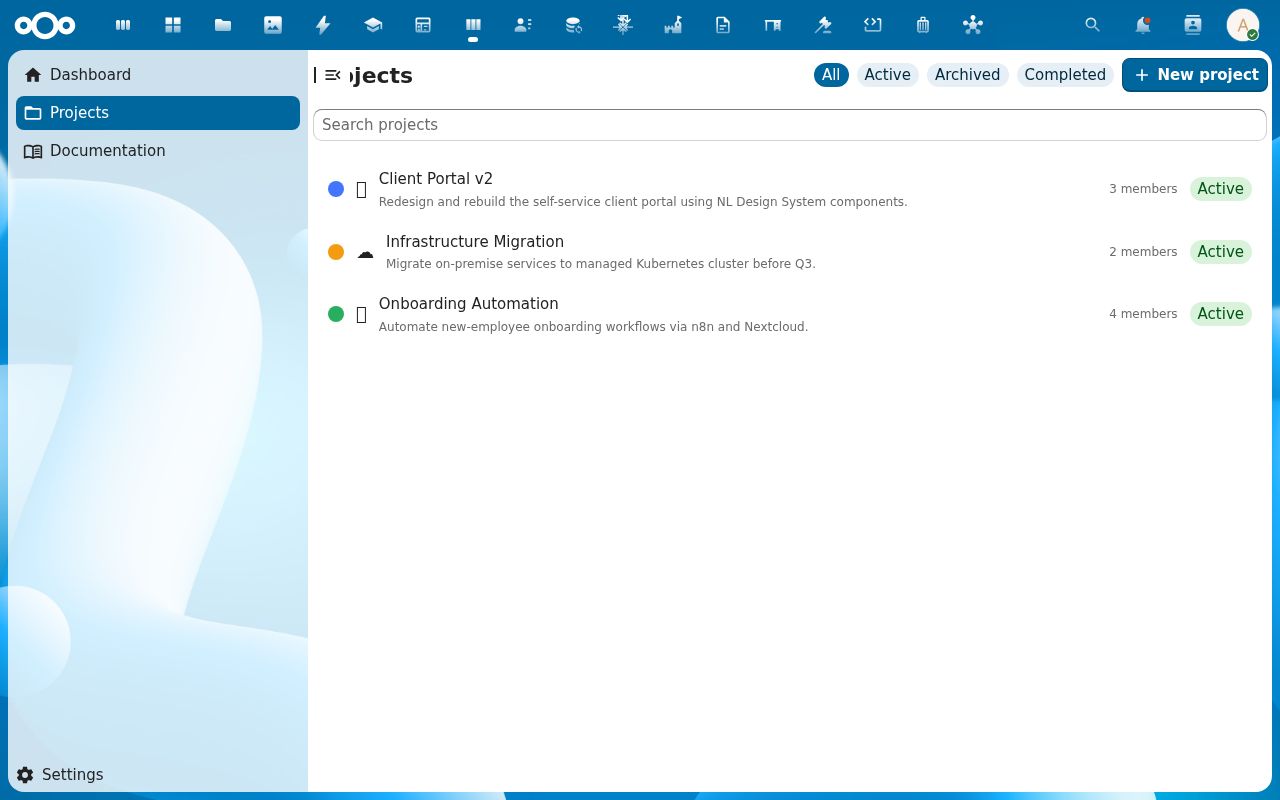
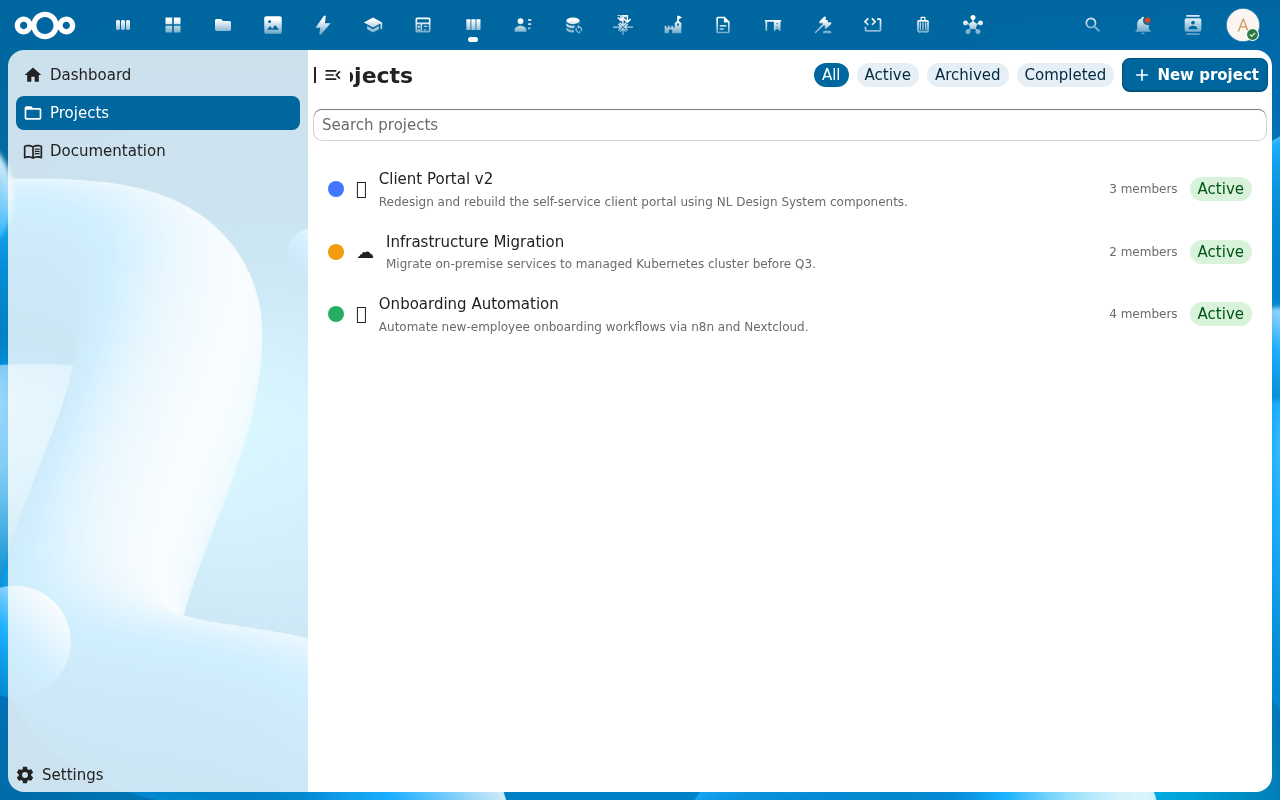
Open the project. The board view loads with the configured columns and the tasks in each. The header shows the project title, colour, icon, gear (project settings), and a View Backlog link.
-
Drag a card from To Do into In Progress. The card moves to the new column and its status field updates. The column counts at each header tick by one —
To Do (4)drops to(3),In Progress (1)rises to(2). The audit trail on the card records the column change.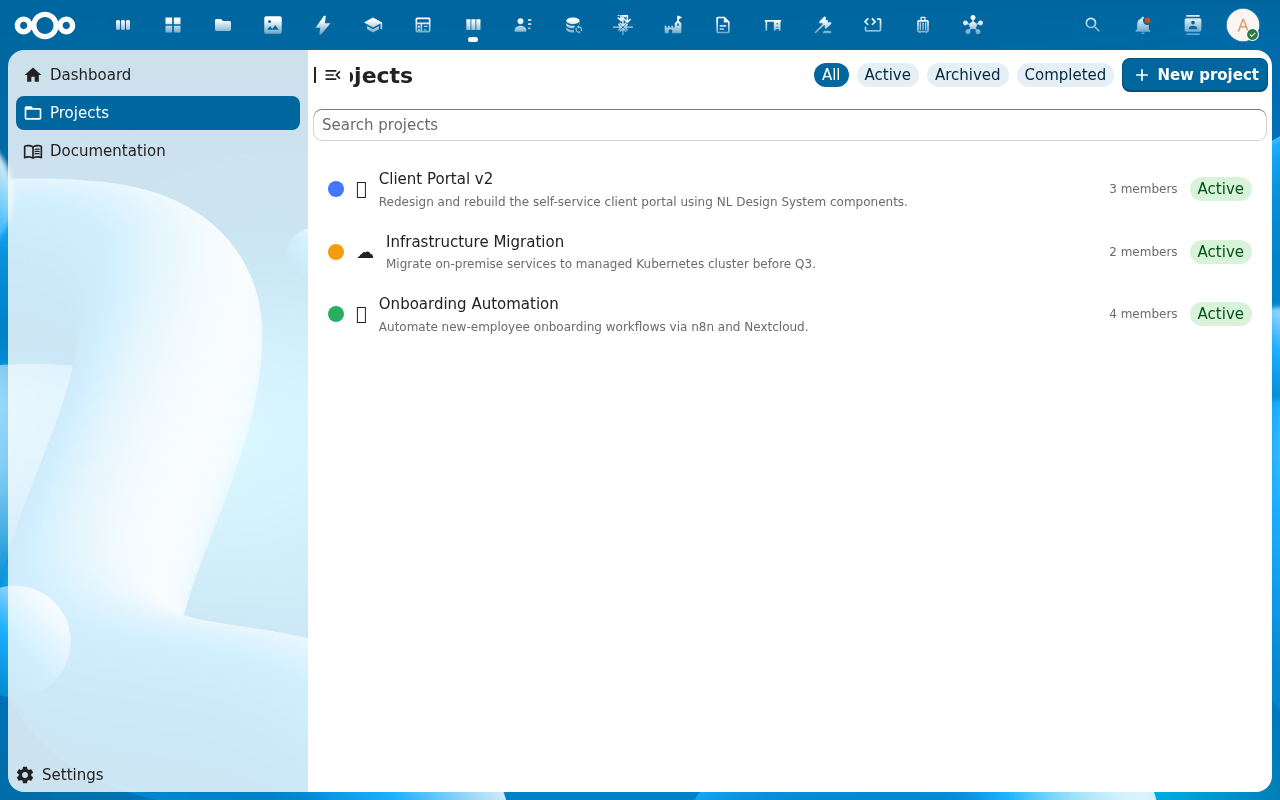
-
Set a WIP limit on a column. Click the column header's gear (or the Edit column action). Set WIP limit to e.g.
3. The column header now showsIn Progress (2/3). If a fourth card lands in In Progress, the header turns amber and the count reads(4/3)— a soft warning; cards are never blocked. The team treats this as "stop starting, start finishing".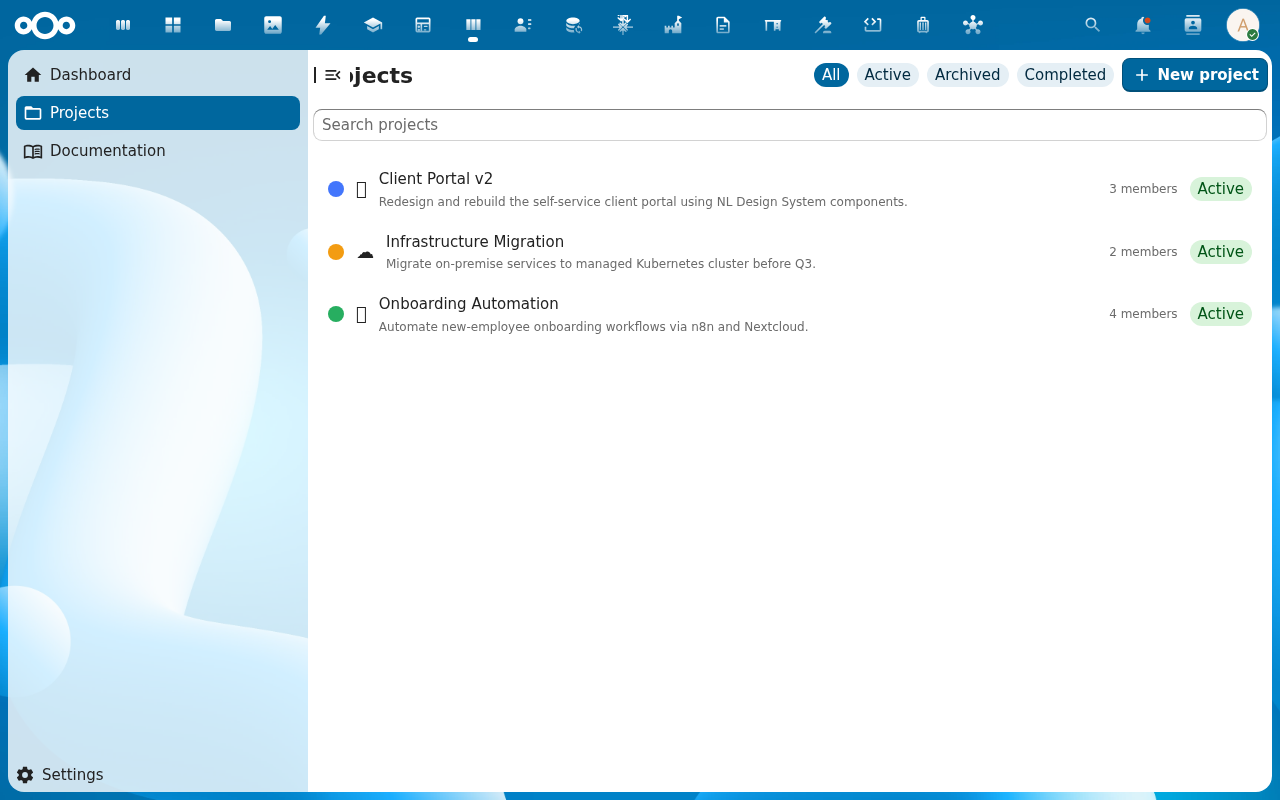
-
Use the board filter to focus. The filter bar above the board offers Assignee, Label, Priority. Pick Assignee = you — every card not assigned to you disappears, columns reflow with the reduced counts. Clear the filter to bring everything back.
-
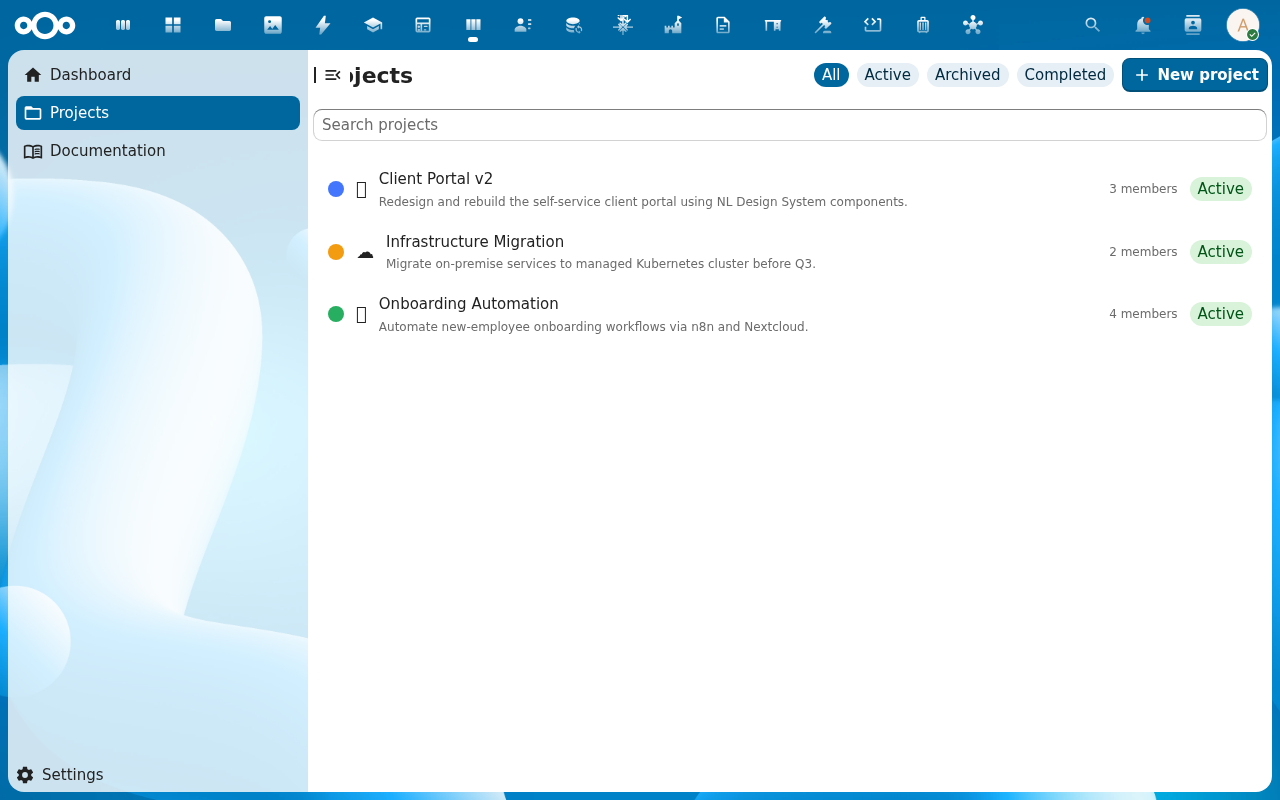
Switch to the list view with the view toggle (top right). The same tasks render as a dense, sortable table — title, status, assignee, priority, due date, labels. Toggling back returns to the kanban view at the same scroll position. Use list view for large projects where the kanban is too wide.
Verification
Cards drag and drop reliably; column counts update; status field on each card reflects the column it sits in. The WIP-limit warning fires when a column exceeds its limit. The board filter narrows what's on screen; the list view shows the same tasks in tabular form.
Common issues
| Symptom | Fix |
|---|---|
| Drag doesn't stick (card snaps back) | The user isn't a member of the project, or the drag was on the column-rename area instead of the card body. Make sure you're dragging the card title, not the column header. |
| WIP limit doesn't show on the column | The column has no limit set — open the column's edit dialog and set one. WIP limits are per-column. |
| Column counts don't match what's there | A filter is active — the count in the header is filtered count; clear filters to see absolute counts. |
| Board is empty on a project with tasks | The tasks have no column assignment — they're in the backlog. Open the View Backlog link and drag them onto the board. |
| List view doesn't reflect a kanban change | The two views read from the same store but the list-view debounce is ~300ms; wait a tick or reload. |
| Screenshots may be missing | App not yet installed in the test environment; rerun npm run test:e2e:docs once it is. |
Reference
- Add and manage tasks — getting cards onto the board.
- Manage the backlog — pulling cards from backlog to board.
- Configure default project columns — admin-side, what new projects start with.
- Kanban board reference — the underlying feature spec.