Link a task to a Procest case
Planix is the sister app to Procest (case management). When a government case (zaak) needs concrete tasks tracked on a kanban board, Procest writes the case-UUID onto a Planix task and Planix renders it back with a deep-link. The integration is metadata-driven — Planix stores the case reference, Procest reads it; no direct API calls between the apps are needed.
Goal
By the end you will have a Planix task with a Procest case linked to it, the read-only Case badge visible on the task detail, and you'll know how the status-change syncs back into Procest's VNG InterneTaak fields when the task is marked done.
Prerequisites
- A task in Planix (see Add and manage tasks).
- A case in Procest with a known UUID, or a Procest case-create flow that wrote a Planix task into your project automatically.
- The Procest bridge enabled in Planix admin settings (default on; if Procest isn't installed, the bridge is a no-op — case-reference fields are still stored, just not actionable).
Steps
-
Open the task detail. Find the Case (Procest
zaakUuid) field on the core info card. If Procest pre-populated the task it's already filled — read-only. If you're linking by hand, paste the case UUID and save.
-
With the link saved, the task detail renders the Case badge with a deep-link to the case in the Procest app. Clicking the badge opens the case in a new tab (Procest's case detail).
-
The project too can carry a Procest case reference (
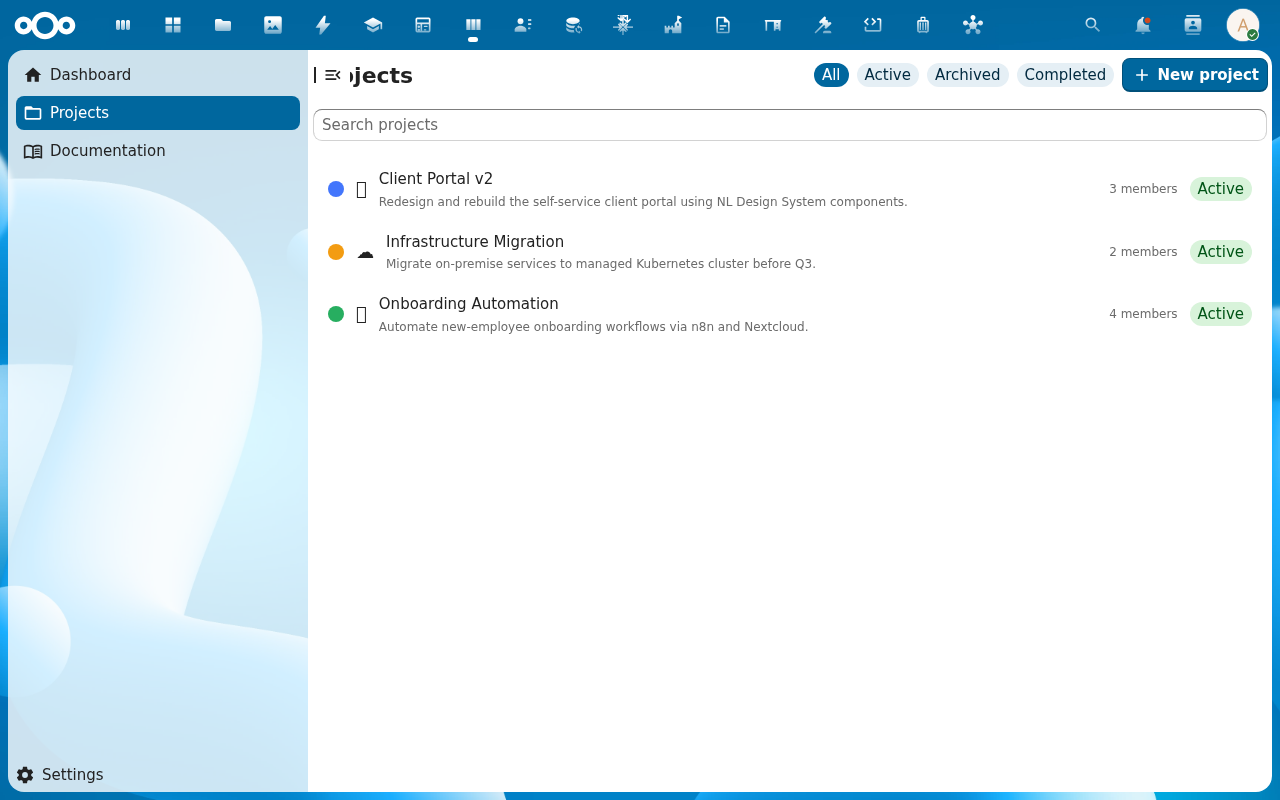
caseReference). Open the project's settings sidebar (gear icon → Details tab), paste the case UUID into the Case reference field, save. Projects with a case reference get aCase: {caseNumber}badge in the project list and project detail.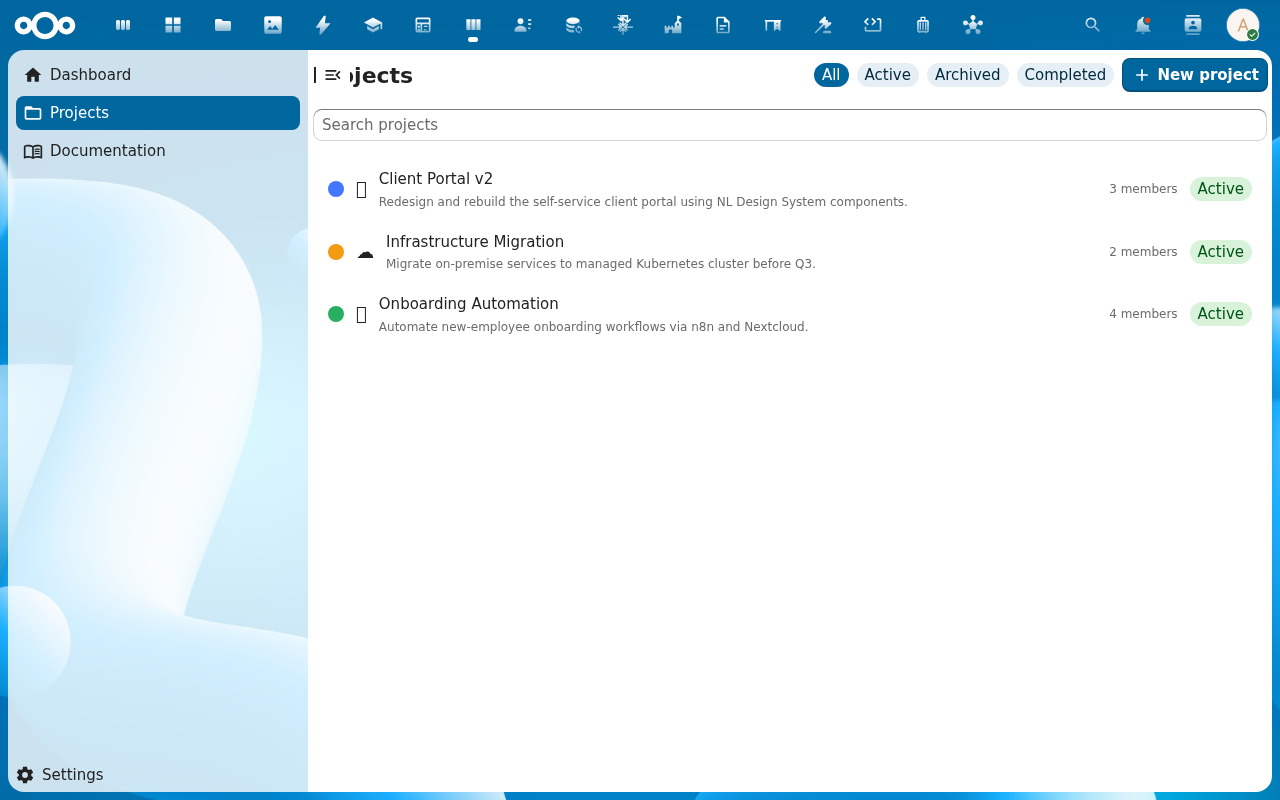
-
Mark the linked task as Done. Planix writes the completion time onto the task's
completedAtfield. The VNG InterneTaak mapping means Procest will pick the completion time up as theafhandelingsdatumon its side when it next syncs. Procest sees the task as handled; the case can advance.
-
To remove the link without deleting the task, clear the Case field. The task stays in Planix, just no longer tied to a Procest case; the badge disappears. The project's case reference works the same way.
Verification
The task carries the case UUID on its zaakUuid field, the Case badge renders and deep-links to Procest, and the project (if linked) carries caseReference and surfaces its own badge. Marking the task done writes a completedAt value; Procest sees the case as handled.
Common issues
| Symptom | Fix |
|---|---|
| Case badge doesn't link to Procest | The Procest app isn't installed/enabled on this Nextcloud instance — the case UUID is still saved as read-only metadata, just nowhere to link to. |
| Pasted UUID is rejected | The field expects a UUID v4; Procest case numbers (human-readable, e.g. Z-2026-001) are different — use the Procest case object's UUID, not its case number. |
| Procest bridge disabled banner on settings | An admin toggled the bridge off — re-enable it in Settings → Administration → Planix if both apps are installed. |
| Task marked done but Procest doesn't reflect it | Procest reads Planix tasks on a schedule (or on case open); give it a few minutes, or re-open the case in Procest. |
| Project list filter doesn't filter by case | Filtering by case is not a built-in filter; the badge is for navigation, not filtering. Use search by case-UUID if you need to find all projects against one case. |
| Screenshots may be missing | App not yet installed in the test environment; rerun npm run test:e2e:docs once it is. |
Reference
- Add and manage tasks — the task fields the bridge populates.
- Manage Planix settings — the Procest bridge toggle.
- Procest integration reference — VNG InterneTaak mapping, bridge model.